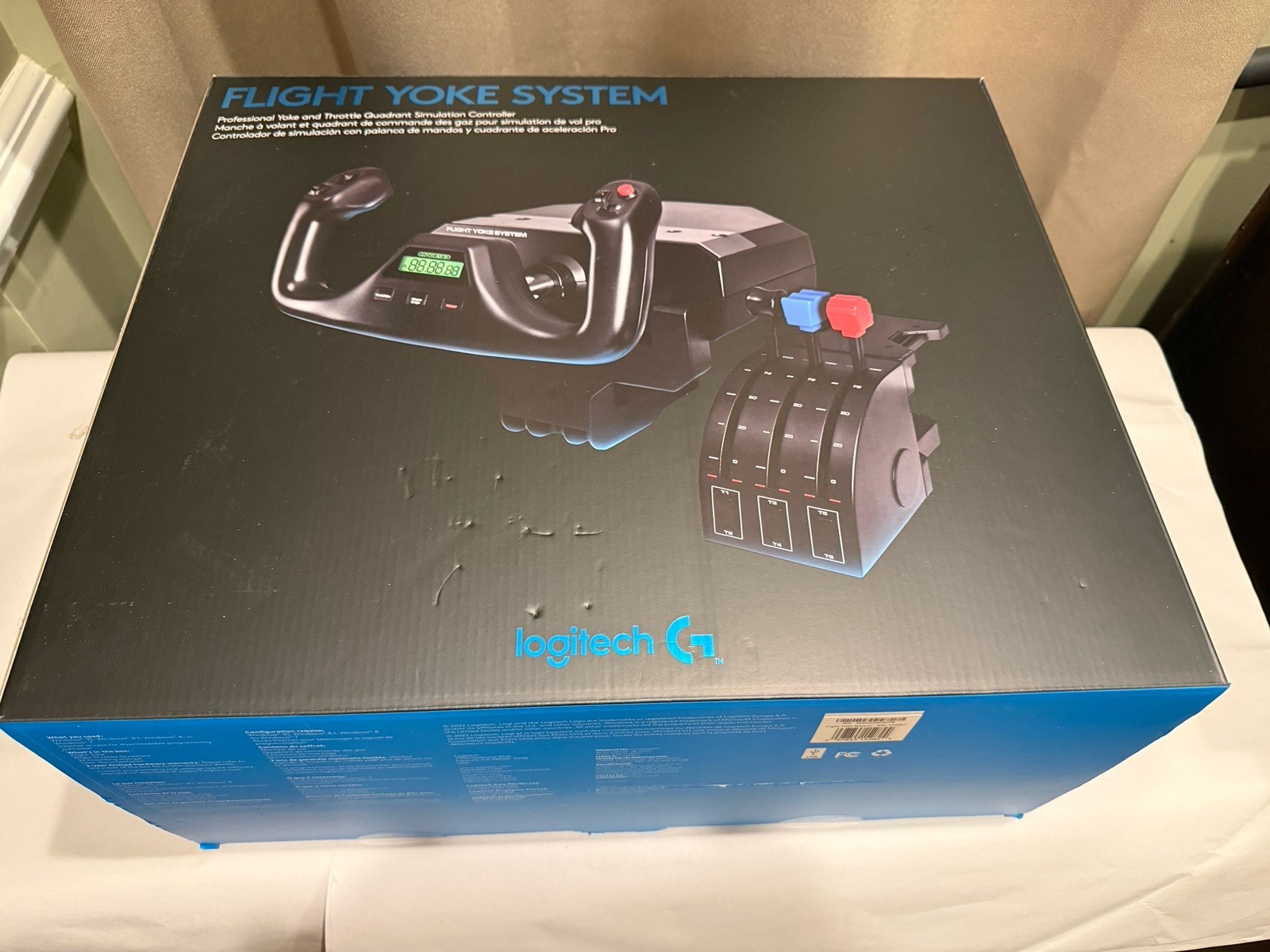

Photos from current listings. Actual item, color, and included accessories may vary.
Logitech Flight Simulator Control Buying Guide
Buying Logitech flight sim controls means choosing between the mainstream G-series (entry-level HOTAS and yoke bundles) and the more modular Pro Flight/Saitek line, and the two families use different connector and axis architectures. Most buyer frustration comes from mismatching the control type to the simulator—yokes for GA/cabin aircraft, sticks for combat and airliners—and from ignoring desk depth and clamp clearance before ordering. Confirm platform drivers and axis count first, then pick the tier that matches your aircraft type.
Key takeaways
- Logitech's flight line splits into two architectures: the G Saitek Pro Flight Yoke System (yoke + throttle quadrant on a single USB connection) and the separate G X56 HOTAS (dual-stick throttle with adjustable spring tension).
- The Pro Flight Yoke System bundles a 90-degree rotation yoke, three-axis throttle quadrant, and clamping desk mount; the yoke base adds pitch/roll plus a built-in timer and clock in the center hub.
- G-series flight controls use a single USB-A wired connection with software-managed button mapping; no Bluetooth or wireless pairing exists across the Pro Flight and G flight families.
At a glance
- Category
- Flight Sim Yokes & Throttles
- Last updated
- Nov 24, 2026
Current offers
Highlights
- Logitech's flight line splits into two architectures: the G Saitek Pro Flight Yoke System (yoke + throttle quadrant on a single USB connection) and the separate G X56 HOTAS (dual-stick throttle with adjustable spring tension).
- The Pro Flight Yoke System bundles a 90-degree rotation yoke, three-axis throttle quadrant, and clamping desk mount; the yoke base adds pitch/roll plus a built-in timer and clock in the center hub.
- G-series flight controls use a single USB-A wired connection with software-managed button mapping; no Bluetooth or wireless pairing exists across the Pro Flight and G flight families.
- The X56 HOTAS differs from the yoke line with hall-effect-style dual rotary axes, dual throttle levers, and more than 30 programmable buttons—combat-sim buyers should choose it over the yoke system.
Best use cases
- Pick the Pro Flight Yoke System if you fly Cessna-style GA aircraft or twin-engine cabin sims in Microsoft Flight Simulator or X-Plane—the 90-degree yoke throw matches real control-column travel.
- Choose the X56 HOTAS instead if your library is combat-focused (DCS, War Thunder, Elite Dangerous)—a yoke is the wrong control for stick-and-rudder fighters.
- Skip the yoke bundle if you fly airliners exclusively and want a tiller and sidestick; a HOTAS with a separate rudder pedal set is the closer match for Airbus-style cockpits.
- Avoid clamping any Logitech yoke to a glass-topped or thin laminate desk under 1 inch thick—the C-clamp needs a solid lip and roughly 2 inches of front clearance for the yoke body.
Buying tips
- Confirm your simulator lists Logitech/Saitek drivers natively before buying; X-Plane and MSFS both detect the Pro Flight Yoke, but some older sims need manual axis assignment.
- Budget desk space from the yoke hub to the throttle quadrant—the bundled Pro Flight quadrant sits beside the yoke and adds roughly a foot of width to your setup.
- Inspect the yoke's clamp range and desk thickness: the bundled C-clamp fits most desks up to about 2 inches thick, and thicker tops need an alternate mount.
- For combat sims, prioritize the X56's dual throttle and spring-tension adjustment over the yoke's 90-degree column; the two are not interchangeable for fighter aircraft.
Specs
| Control Type | Yoke + throttle vs HOTAS stick |
|---|---|
| Yoke Rotation | 90-degree column travel |
| Connection | Wired USB-A, no wireless |
| Throttle Levers | 3-axis quadrant vs dual HOTAS |
Related searches
What to check before buying
- Measure desk depth and front lip: the Pro Flight Yoke body extends several inches behind the clamp, so leave clearance for the column's pitch travel.
- Verify your PC has a free USB-A port and that your simulator supports DirectInput/XInput mapping for multi-axis controllers.
- Confirm your desk surface is solid wood or MDF at least 1 inch thick—glass and thin laminate can crack or flex under clamp pressure.
- Check whether you need rudder pedals separately; the Pro Flight Yoke bundle does not include them, and yaw control requires the add-on pedal set.
FAQ
Data sources: eBay / Amazon listings and product attribute feeds. Updated Nov 24, 2026.
Some links on this page are affiliate links. If you buy after clicking one, we may earn a commission at no extra cost to you. This does not change which products appear here or their order. Affiliate disclosure.