
Photos from current listings. Actual item, color, and included accessories may vary.
Wireless Keyboard Mouse Buying Guide
A wireless keyboard and mouse combo replaces two cables with one USB receiver or Bluetooth pairing, but the underlying radio, switch, and sensor quality determines whether it lasts years or months. The primary trade-off is between low-cost 2.4GHz membrane bundles with sealed, non-replaceable batteries and slightly pricier models using replaceable AA/AAA cells, Bluetooth multi-device pairing, and tactile or mechanical switches. The decision rule: buy any combo with a 2.4GHz USB-A receiver if you need plug-and-play across Windows, macOS, and Linux; pay the tier upgrade only when you require Bluetooth switching between a laptop and tablet or a mechanical-feel typing experience.
Median $24.00
Key takeaways
- Connection architecture splits into 2.4GHz USB-A dongle (lowest latency, works pre-boot and in BIOS) versus Bluetooth 5.0/5.1 (no dongle, multi-device pairing, but OS-dependent and higher idle latency).
- Battery strategy is the durability gate: sealed lithium-polymer cells inside slim keyboards force disposal at end-of-life, while AA/AAA replaceable cells in full-size combos keep the device serviceable for years.
- Switch and keycap construction separates tiers: scissor-switch low-profile keys (laptop-style, ~3mm travel) suit travel, while membrane full-size layouts with 2–3mm travel and typewriter round keycaps sacrifice speed for aesthetics.
At a glance
- Category
- Computers & Peripherals
- Last updated
- Nov 27, 2026
Current offers
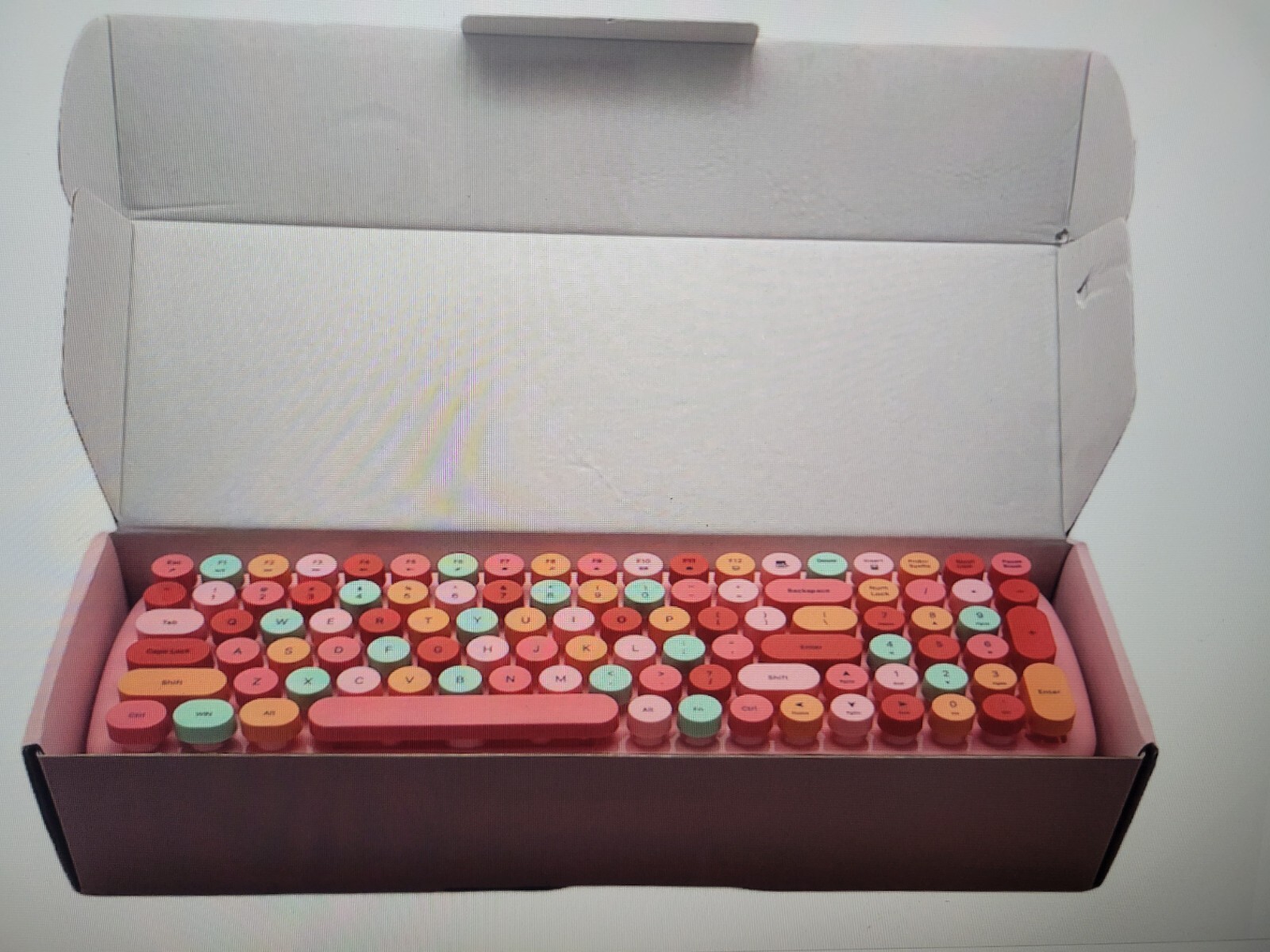 Mofii Candy XR Wireless Keyboard Mixed Colors With Candy Pink Mouse Included$21.44Last checked Nov 19, 2026View on eBay
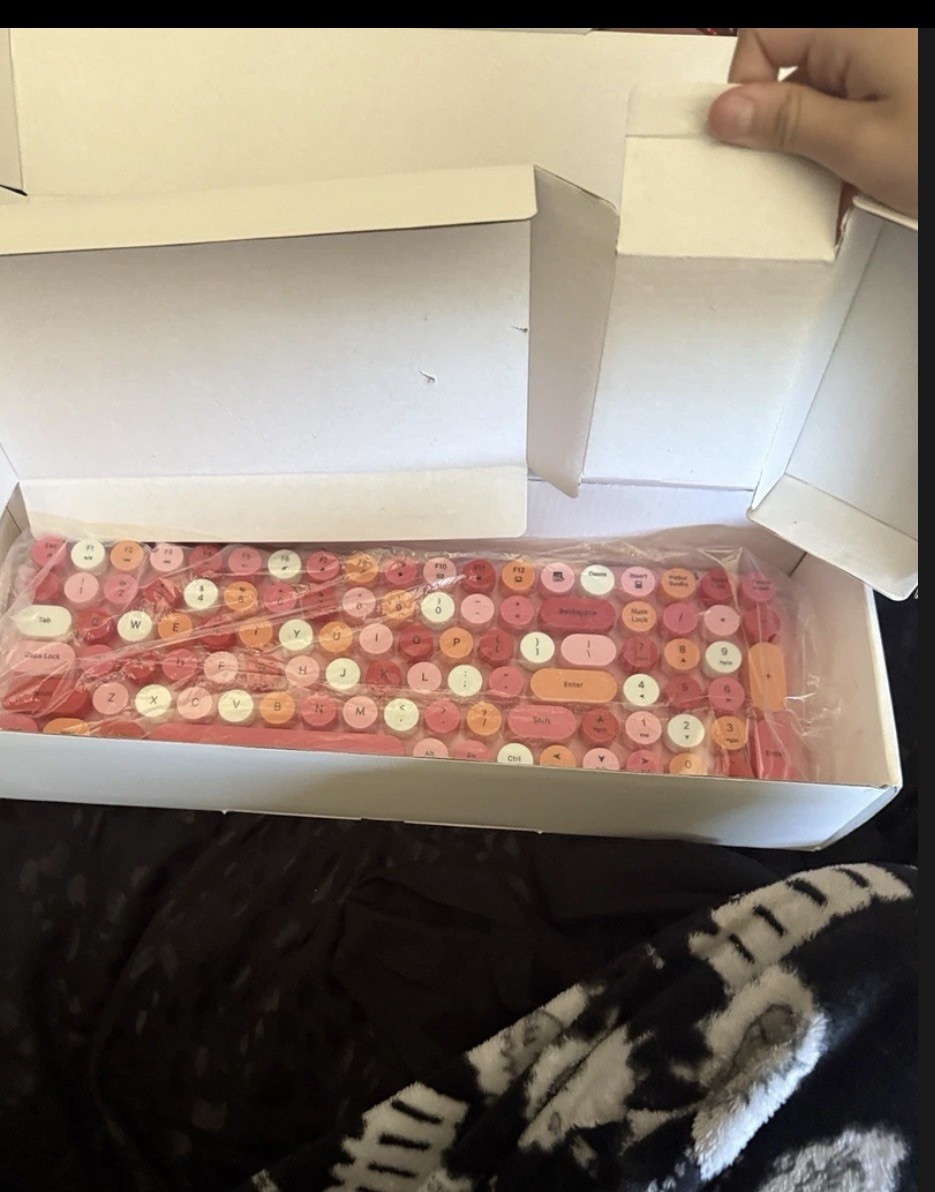 Mofii Candy XR Wireless Keyboard Combo With Mouse Green$24.00Last checked Nov 18, 2026View on eBay
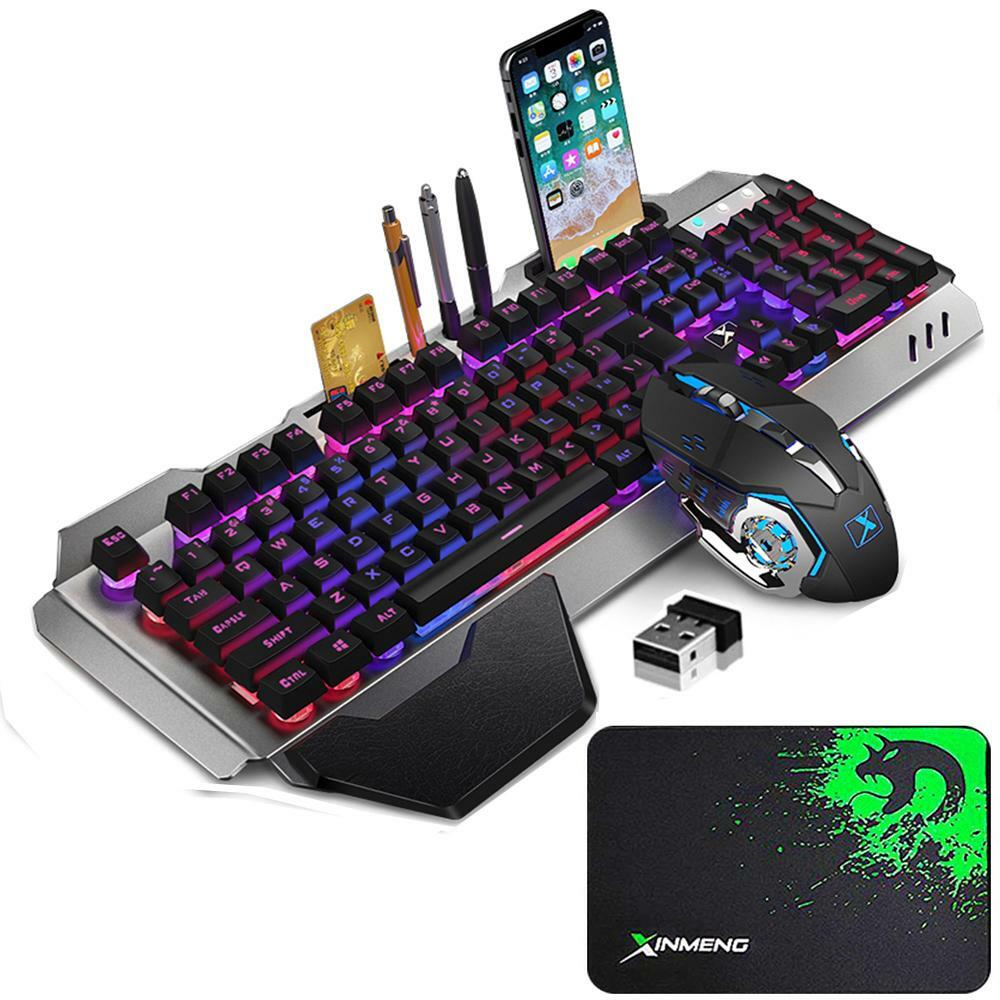 Wireless Gaming Keyboard and Mouse Mechanical Feel Rainbow Backlit$47.99View on eBay
Highlights
- Connection architecture splits into 2.4GHz USB-A dongle (lowest latency, works pre-boot and in BIOS) versus Bluetooth 5.0/5.1 (no dongle, multi-device pairing, but OS-dependent and higher idle latency).
- Battery strategy is the durability gate: sealed lithium-polymer cells inside slim keyboards force disposal at end-of-life, while AA/AAA replaceable cells in full-size combos keep the device serviceable for years.
- Switch and keycap construction separates tiers: scissor-switch low-profile keys (laptop-style, ~3mm travel) suit travel, while membrane full-size layouts with 2–3mm travel and typewriter round keycaps sacrifice speed for aesthetics.
- Mouse sensor resolution and polling matter more than DPI marketing: 1000–1600 DPI optical sensors with 125Hz polling are standard for productivity combos, while 2.4GHz gaming combos claim 1000Hz polling and rainbow backlighting at the cost of battery life.
Best use cases
- Best fit for MacBook users: a Bluetooth 5.0+ combo with multi-device switching and a Mac-layout keycap set (Command/Option legends) — skip 2.4GHz-only bundles with Windows legends if you rely on macOS shortcuts.
- Best fit for desktop productivity: a full-size 2.4GHz combo with numeric keypad, replaceable AA/AAA batteries, and a 1000–1600 DPI mouse — skip compact 60% layouts if you use spreadsheets daily.
- Best fit for shared living-room or HTPC use: a 2.4GHz dongle combo that works without OS-level Bluetooth pairing — skip Bluetooth-only models that require re-pairing after sleep or reboot.
- Wrong fit: buying a retro typewriter round-keycap combo for fast touch-typing or coding — the round caps and shallow travel reduce accuracy and speed versus standard scissor or membrane layouts.
Buying tips
- Match the keyboard layout to your OS: macOS-specific legends (Command, Option, Control positions) avoid remapping; Windows-layout combos work on Mac but require System Settings > Keyboard > Modifier Keys remapping.
- Choose replaceable AA/AAA batteries over sealed lithium cells if you plan to keep the combo beyond two years — sealed slim keyboards become e-waste when the cell degrades.
- For multi-device workflows, pick a combo rated for Bluetooth 5.0 or newer with at least two host slots; 2.4GHz dongles occupy a USB-A port and generally pair with only one receiver.
- Verify mouse DPI range and polling rate against use: 1000–1600 DPI at 125Hz is sufficient for office work; only gaming combos need 1000Hz polling, which drains batteries faster.
Specs
| Connection | 2.4GHz USB-A dongle vs Bluetooth 5.x |
|---|---|
| Keyboard Layout | Full-size / TKL / 60-75% compact |
| Key Mechanism | Scissor / membrane / mechanical-feel |
| Mouse Sensor | 1000-1600 DPI optical, 125Hz polling |
Related searches
What to check before buying
- Measure your desk space: full-size combos need roughly 45cm width for the keyboard plus mouse clearance; compact 60–75% layouts save 10–15cm.
- Confirm USB-A port availability — 2.4GHz receivers require a free USB-A port; USB-C-only laptops need a hub or a Bluetooth combo.
- Check OS support explicitly: most 2.4GHz combos support Windows/macOS/Linux/ChromeOS, but media keys and Mac legends vary by model.
- Account for battery type and count: combos ship with 1–2 AA or AAA cells or a sealed rechargeable; factor in a spare set or charging cable.
FAQ
Data sources: eBay / Amazon listings and product attribute feeds. Updated Nov 27, 2026.
Some links on this page are affiliate links. If you buy after clicking one, we may earn a commission at no extra cost to you. This does not change which products appear here or their order. Affiliate disclosure.