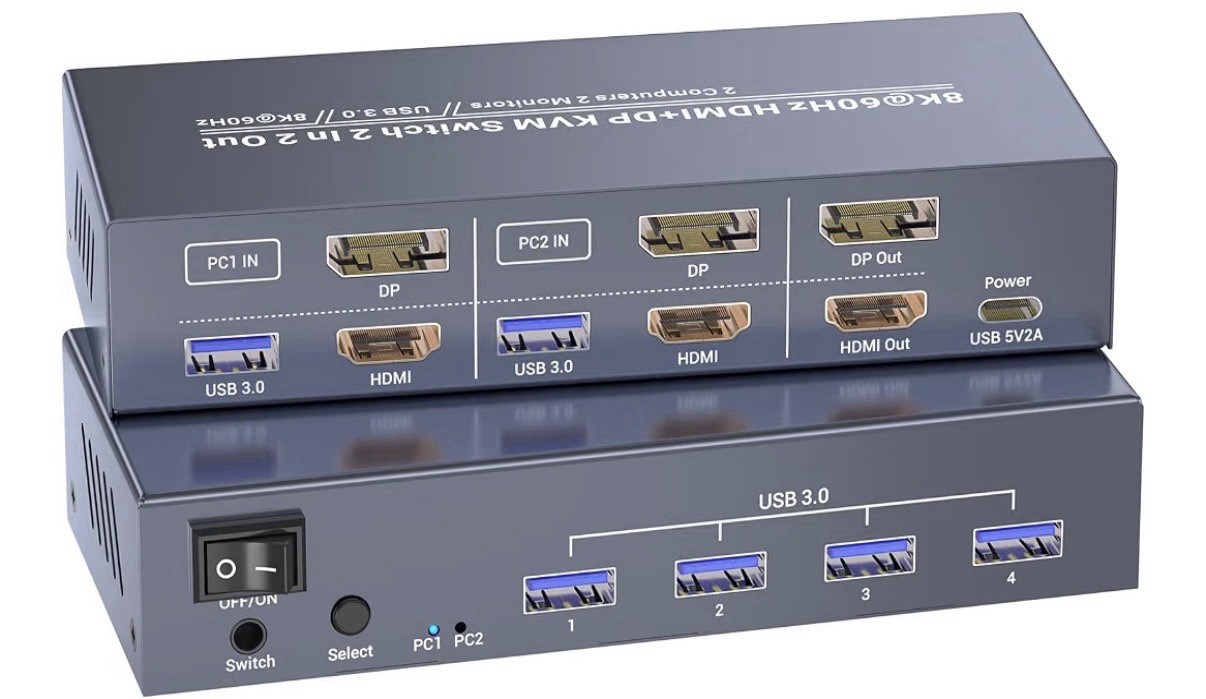

Photos from current listings. Actual item, color, and included accessories may vary.
HDMI KVM Switch Buying Guide
An HDMI KVM switch lets one keyboard, mouse, and monitor control two or more computers, and the decisive trade-off is between HDMI version bandwidth and USB peripheral switching quality. Cheap units often fake EDID or drop USB devices on hotkey switching, while durable models use dedicated EDID emulators, USB 3.0 hubs, and verified HDCP handling.
HDMI Version:HDMI 1.4 (10.2 Gbps) vs 2.0 (18 Gbps)Max Resolution:4K30 vs 4K60 4:4:4USB Hub:USB 2.0 (480 Mbps) vs 3.0 (5 Gbps)EDID Emulation:Yes (prevents black screens) vs No
Typical price range$40.00
Key takeaways
- HDMI 2.0 switches carry 18 Gbps for 4K60 4:4:4; HDMI 1.4 units cap at 10.2 Gbps and force 4K30 or 4:2:0 chroma subsampling.
- EDID emulation is the key durability feature: it keeps the source PC's display output alive when switched away, preventing window reshuffling and black screens.
- USB 3.0 KVM models provide 5 Gbps peripheral switching; USB 2.0 units are limited to 480 Mbps and often fail with high-draw devices like external SSDs.
At a glance
- Category
- Computers & Peripherals
- Last updated
- Nov 28, 2026
Current offers
Highlights
- HDMI 2.0 switches carry 18 Gbps for 4K60 4:4:4; HDMI 1.4 units cap at 10.2 Gbps and force 4K30 or 4:2:0 chroma subsampling.
- EDID emulation is the key durability feature: it keeps the source PC's display output alive when switched away, preventing window reshuffling and black screens.
- USB 3.0 KVM models provide 5 Gbps peripheral switching; USB 2.0 units are limited to 480 Mbps and often fail with high-draw devices like external SSDs.
- HDCP 2.2 passthrough is required for 4K streaming and protected content; non-compliant switches show a blank screen instead of a downgraded stream.
Best use cases
- Best fit: dual-PC home office with a single 4K60 monitor — pick an HDMI 2.0 KVM with EDID emulation and a 4-port USB 3.0 hub; skip HDMI 1.4 units.
- Best fit: gaming PC plus work laptop at 1440p high refresh — choose a KVM rated for the exact resolution/refresh (e.g., 1440p144) and confirm HDMI 2.0 bandwidth; skip generic 4K30 switches.
- Wrong fit: multi-monitor dual-display setups — a single HDMI KVM switches only one monitor; use a dual-monitor KVM or two synchronized units.
- Wrong fit: USB-C-only laptops — an HDMI KVM needs an HDMI output; add a USB-C to HDMI adapter or choose a USB-C KVM instead.
Buying tips
- Match bandwidth to your signal: 4K60 4:4:4 needs HDMI 2.0 (18 Gbps); 4K30 or 1080p60 works with HDMI 1.4 (10.2 Gbps).
- Count USB ports: keyboard, mouse, webcam, and audio need a 4-port hub; 2-port KVMs force manual re-plugging.
- Verify EDID emulation and HDCP 2.2 in the spec sheet; these are the two features that prevent black screens and window resets.
- For cable runs over 3 m at 4K60, use active or fiber HDMI cables; passive cables drop signal and cause intermittent switching failures.
Specs
| HDMI Version | HDMI 1.4 (10.2 Gbps) vs 2.0 (18 Gbps) |
|---|---|
| Max Resolution | 4K30 vs 4K60 4:4:4 |
| USB Hub | USB 2.0 (480 Mbps) vs 3.0 (5 Gbps) |
| EDID Emulation | Yes (prevents black screens) vs No |
Related searches
What to check before buying
- Measure monitor resolution and refresh rate, then confirm the KVM's maximum supported resolution and chroma subsampling.
- Count computers and their video outputs: each PC needs an HDMI port; laptops with only USB-C require adapters.
- Check USB device power draw: bus-powered SSDs and webcams may need a KVM with a powered hub or external power adapter.
- Confirm your region's plug type and voltage for the KVM's power adapter if it includes one; passive KVMs draw power from HDMI.
FAQ
Data sources: eBay / Amazon listings and product attribute feeds. Updated Nov 28, 2026.
Some links on this page are affiliate links. If you buy after clicking one, we may earn a commission at no extra cost to you. This does not change which products appear here or their order. Affiliate disclosure.