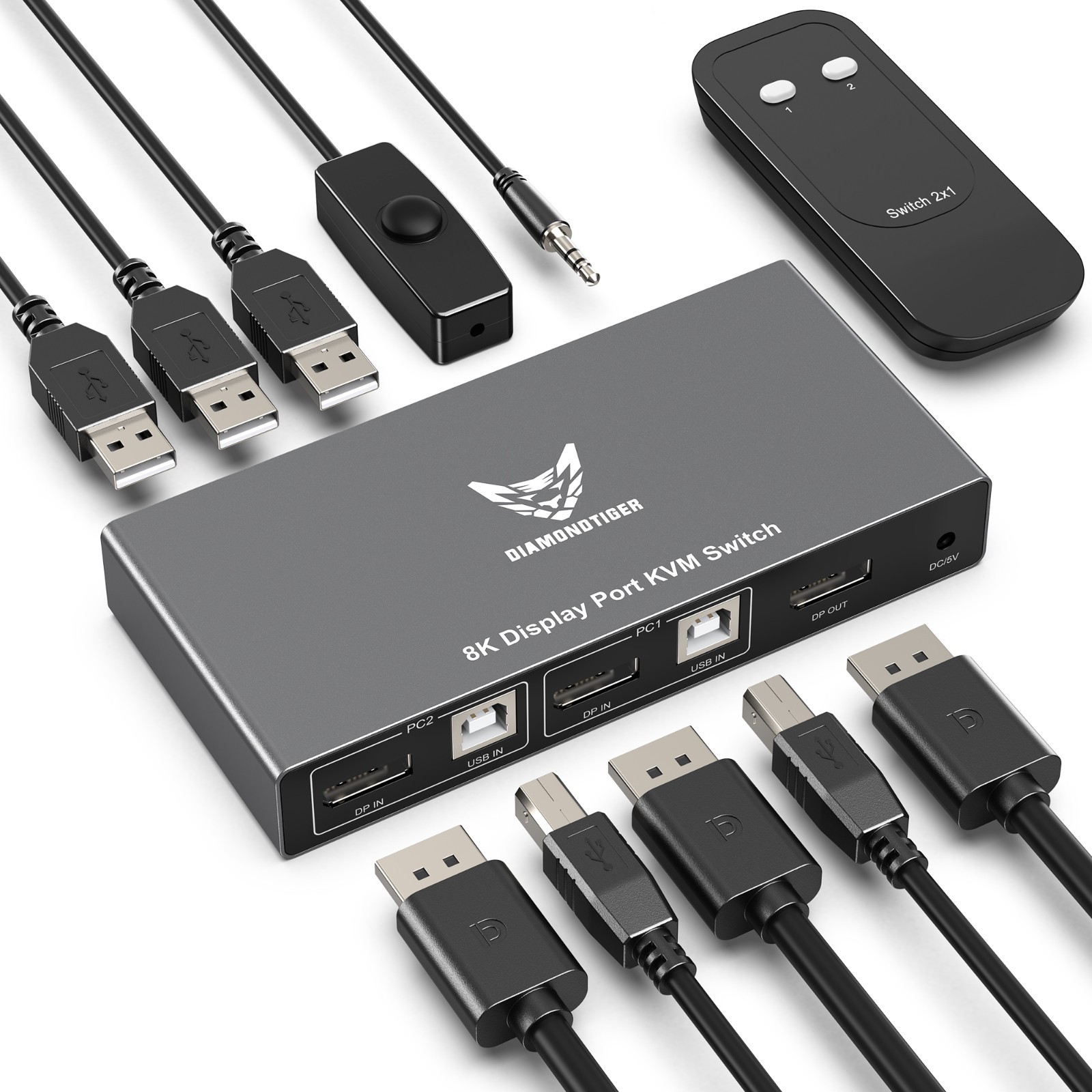

Photos from current listings. Actual item, color, and included accessories may vary.
Computer Monitor Buying Guide
A computer monitor is a display chosen primarily by panel technology (IPS, VA, OLED, TN), resolution and refresh-rate tier, and the stand/port ecosystem that ties it to your desk and devices. The core trade-off is motion clarity and contrast versus color accuracy, viewing angles, and burn-in risk: fast TN/OLED favor competitive gaming, while IPS/VA favor productivity and color work. The decision rule: match panel type and port standard to your GPU and room lighting first, then buy the highest resolution your desk depth and GPU can drive at native refresh.
Key takeaways
- Panel type determines the trade-off: IPS gives 178-degree viewing angles and accurate sRGB, VA gives 3000:1+ static contrast but smears in dark transitions, OLED gives per-pixel contrast with burn-in risk under static UI.
- Resolution must match GPU and desk depth: 1080p is sharp up to ~24 in, 1440p suits 27 in, 4K needs 27-32 in and a DisplayPort 1.4 or HDMI 2.1 link for 60Hz+ at native.
- Refresh and sync: 144Hz+ needs DisplayPort or HDMI 2.1; FreeSync works over HDMI/DP on most GPUs, while G-Sync hardware modules add cost and limit port choice.
At a glance
- Category
- Computers & Peripherals
- Last updated
- Nov 28, 2026
Current offers
Highlights
- Panel type determines the trade-off: IPS gives 178-degree viewing angles and accurate sRGB, VA gives 3000:1+ static contrast but smears in dark transitions, OLED gives per-pixel contrast with burn-in risk under static UI.
- Resolution must match GPU and desk depth: 1080p is sharp up to ~24 in, 1440p suits 27 in, 4K needs 27-32 in and a DisplayPort 1.4 or HDMI 2.1 link for 60Hz+ at native.
- Refresh and sync: 144Hz+ needs DisplayPort or HDMI 2.1; FreeSync works over HDMI/DP on most GPUs, while G-Sync hardware modules add cost and limit port choice.
- Ports and ergonomics decide longevity: USB-C with 65-90W Power Delivery plus a height/tilt/pivot stand is the productivity baseline; fixed stands and HDMI-only inputs cap multi-device setups.
Best use cases
- Competitive FPS and esports: pick a 24-27 in 1080p/1440p TN or fast IPS at 240Hz+ with DisplayPort; skip 4K 60Hz panels and VA for motion clarity.
- Photo/video and office productivity: pick 27 in 1440p or 4K IPS with 99% sRGB, USB-C 65W+ PD, and a fully adjustable stand; skip TN and curved VA unless contrast matters more than color.
- Console and mixed media: pick 4K 120Hz HDMI 2.1 with VRR for PS5/Xbox Series X; skip 1440p-only monitors that downscale console output and DisplayPort-only models without HDMI 2.1.
- Multi-PC or KVM desk: choose a monitor whose USB-C or built-in KVM handles two sources, or budget a separate DisplayPort 1.4 KVM; skip single-HDMI budget panels if you switch between work laptop and desktop daily.
Buying tips
- Size formula: viewing distance in inches divided by 1.5-2 gives the diagonal for mixed office use; 27 in at 24-30 in distance pairs with 1440p, 32 in with 4K.
- Check the port generation, not just the count: DisplayPort 1.4 carries 4K 120Hz with DSC, HDMI 2.0 caps 4K at 60Hz, and USB-C alt mode needs DP 1.4 for 4K 60Hz plus data.
- For color work require 99% sRGB or 95%+ DCI-P3 with a factory calibration report; VA and TN panels typically fall short on gamut and uniformity.
- Match stand and VESA: 100x100mm VESA lets you add an arm; a monitor without height adjustment forces you to buy a mount, so factor that into the tier choice.
Specs
| Panel Type | IPS / VA / OLED / TN |
|---|---|
| Resolution Tier | 1080p / 1440p / 4K UHD |
| Refresh & Sync | 60-240Hz; FreeSync / G-Sync |
| Ports & Power | DP 1.4 / HDMI 2.1 / USB-C PD |
Related searches
What to check before buying
- Measure desk depth and eye height: you need 20-30 in viewing distance for 27 in and 30-36 in for 32 in; confirm the stand's height range or plan a VESA arm.
- Confirm GPU outputs: count DisplayPort 1.4 and HDMI 2.1 ports on your GPU and laptop dock; a USB-C-only laptop needs a monitor with USB-C PD or a dock.
- Check room lighting for OLED: direct window light on a glossy OLED causes reflections, and static taskbars risk burn-in; VA/IPS matte suits bright rooms.
- Verify power and cabling: monitors ship with regional plugs and often only HDMI; budget a DisplayPort or USB-C cable rated for your resolution and refresh.
FAQ
Data sources: eBay / Amazon listings and product attribute feeds. Updated Nov 28, 2026.
Some links on this page are affiliate links. If you buy after clicking one, we may earn a commission at no extra cost to you. This does not change which products appear here or their order. Affiliate disclosure.