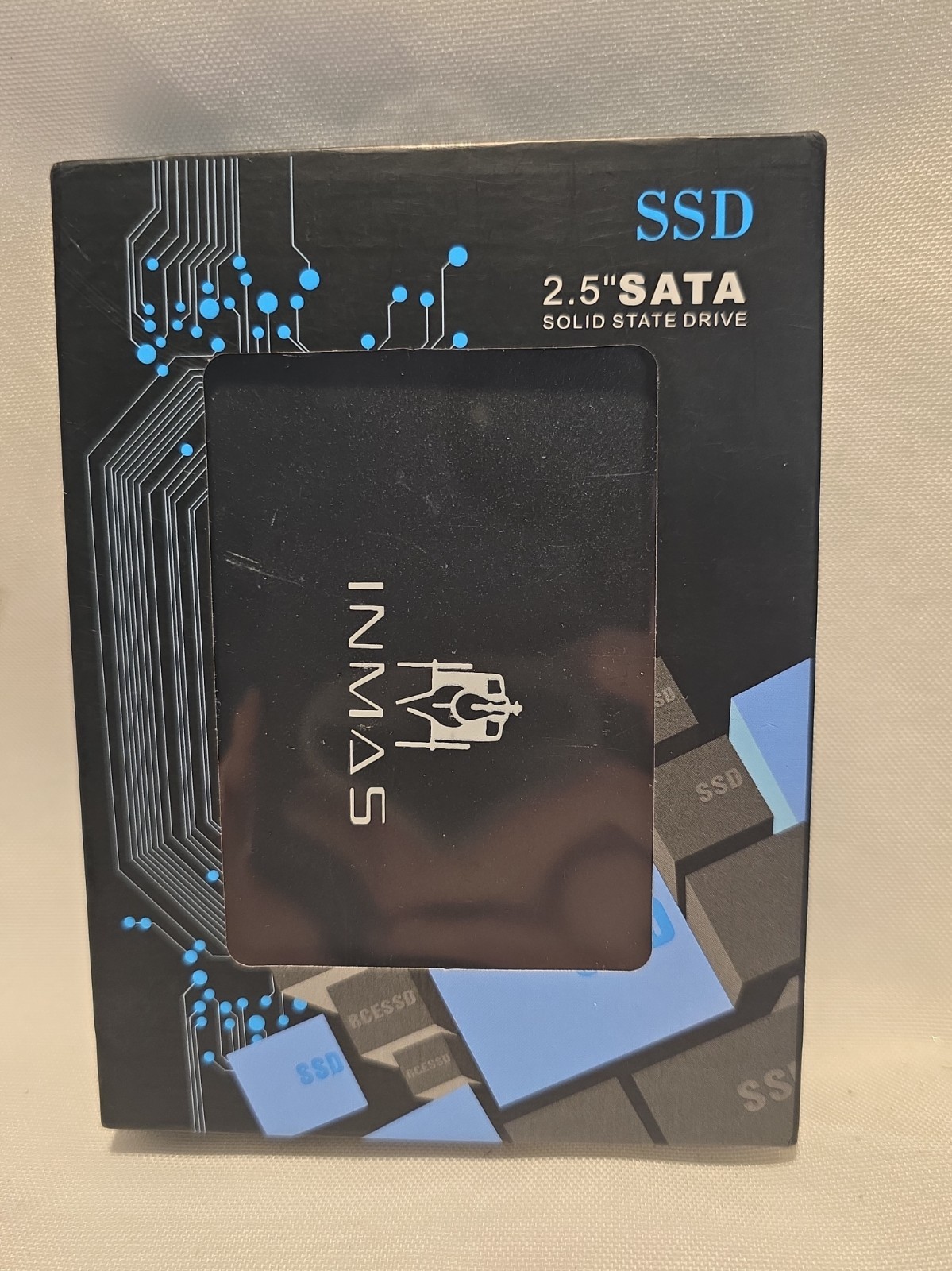

Photos from current listings. Actual item, color, and included accessories may vary.
SSD Card Buying Guide
An SSD card is an internal solid-state drive module that plugs into a desktop or laptop via SATA or M.2 NVMe, replacing a spinning hard drive or adding fast flash storage. The core trade-off is interface and protocol: SATA caps at ~550 MB/s while PCIe Gen3/Gen4 NVMe reaches 3,500–7,400 MB/s, and build quality (DRAM cache, NAND grade, controller) separates drives that last from those that throttle or fail early. Buy by form factor and protocol first, then by capacity tier and endurance rating—not by marketing capacity alone.
Median $144.99
Key takeaways
- SATA 2.5-inch SSDs top out near 550 MB/s read/write due to the 6 Gb/s SATA III link, making them best for older laptops and desktops without M.2 slots.
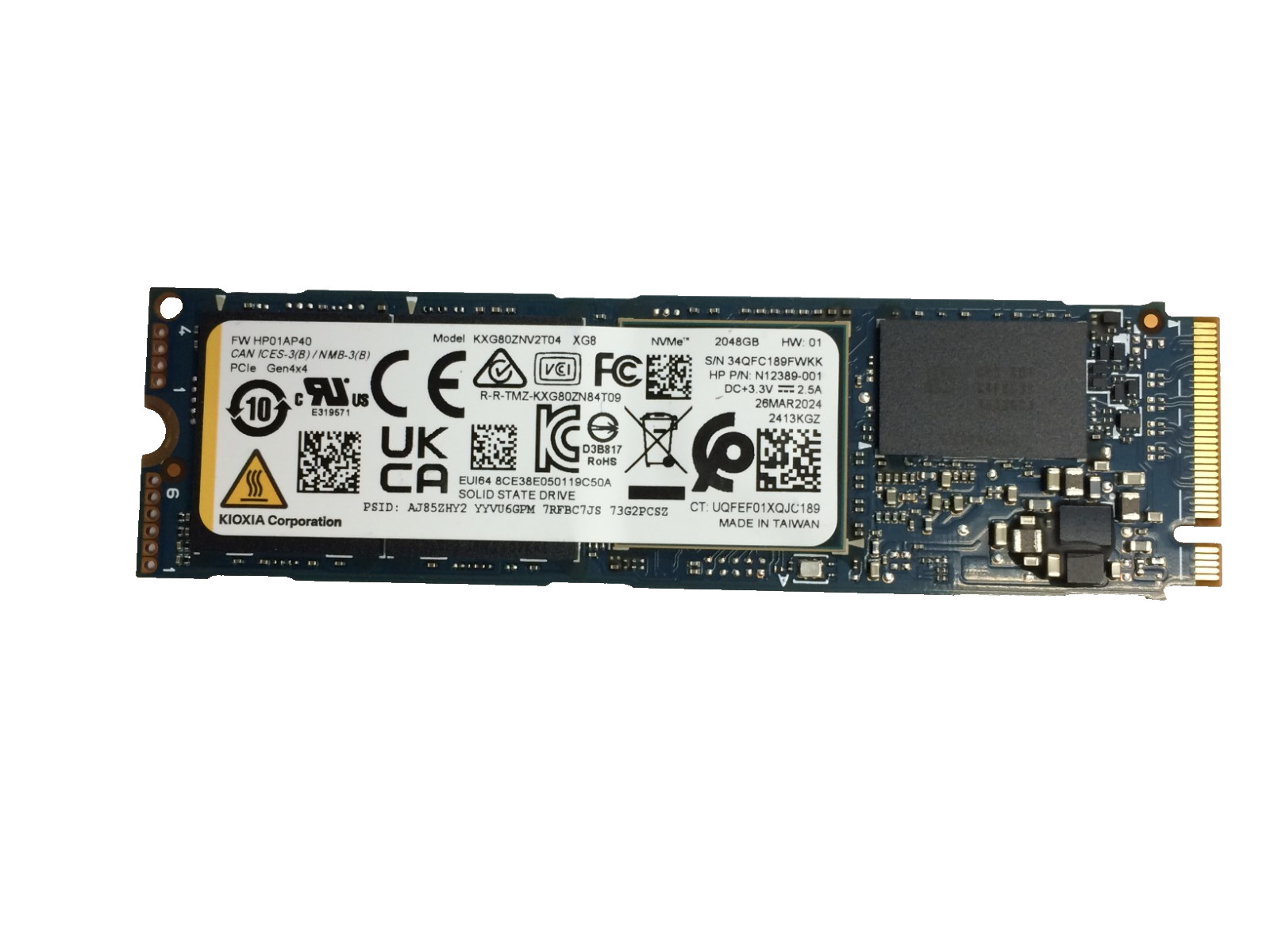
- M.2 2280 NVMe PCIe Gen3 x4 delivers roughly 3,000–3,500 MB/s, while Gen4 x4 doubles that to 5,000–7,400 MB/s on compatible CPUs and boards.
- DRAM-cached drives sustain write speeds and random IOPS far better than DRAM-less HMB models, which rely on system RAM and slow sharply on large transfers.
At a glance
- Category
- PC Storage Upgrades
- Last updated
- Nov 28, 2026
Current offers
Highlights
- SATA 2.5-inch SSDs top out near 550 MB/s read/write due to the 6 Gb/s SATA III link, making them best for older laptops and desktops without M.2 slots.
- M.2 2280 NVMe PCIe Gen3 x4 delivers roughly 3,000–3,500 MB/s, while Gen4 x4 doubles that to 5,000–7,400 MB/s on compatible CPUs and boards.
- DRAM-cached drives sustain write speeds and random IOPS far better than DRAM-less HMB models, which rely on system RAM and slow sharply on large transfers.
- Endurance is rated in TBW (terabytes written): 1TB TLC drives typically range 400–600 TBW, and higher-capacity tiers scale endurance proportionally.
Best use cases
- Best fit: upgrading an older laptop or desktop with a 2.5-inch SATA bay—pick a SATA III SSD for a plug-and-play speed jump over HDD.
- Best fit: a modern desktop or laptop with an M.2 2280 slot—choose PCIe Gen3 NVMe for value or Gen4 NVMe if the board and CPU support it for maximum throughput.
- Wrong fit: buying a Gen4 NVMe drive for a system whose M.2 slot is Gen3-only—it runs at Gen3 speeds, so pay for Gen3 or put the savings into capacity.
- Wrong fit: using a SATA SSD in an M.2-only ultrabook—there is no 2.5-inch bay, so confirm the slot type before ordering.
Buying tips
- Match the slot: measure the M.2 slot length (2280 is 80mm, 2242 is 42mm) and confirm keying—M-key for NVMe PCIe, B+M key for SATA M.2.
- Check protocol support: PCIe Gen4 drives are backward-compatible with Gen3 slots but run at Gen3 speed; buy Gen4 only if the platform supports it.
- Prioritize DRAM cache and TLC NAND for sustained writes; DRAM-less QLC drives are fine for light office use but slow under heavy transfers.
- Size capacity with headroom: keep 15–20% free space so the controller can manage wear leveling and maintain rated write speeds.
Specs
| Form Factor | 2.5-inch SATA vs M.2 2280 |
|---|---|
| Interface / Protocol | SATA III vs PCIe Gen3/Gen4 NVMe |
| Max Sequential Speed | SATA ~550 MB/s; NVMe 3,500–7,400 MB/s |
| NAND & Cache | TLC/QLC; DRAM-cached vs DRAM-less |
Related searches
What to check before buying
- Confirm your motherboard or laptop has a free 2.5-inch SATA bay or an M.2 slot, and note the M.2 length and keying.
- Verify the CPU/chipset generation supports the PCIe version of the NVMe drive you plan to buy.
- Check that your OS and BIOS support NVMe boot; older systems may need a BIOS update or a SATA drive instead.
- Ensure you have the mounting screw for M.2 or a SATA data and power cable for 2.5-inch drives before installation.
FAQ
Data sources: eBay / Amazon listings and product attribute feeds. Updated Nov 28, 2026.
Some links on this page are affiliate links. If you buy after clicking one, we may earn a commission at no extra cost to you. This does not change which products appear here or their order. Affiliate disclosure.