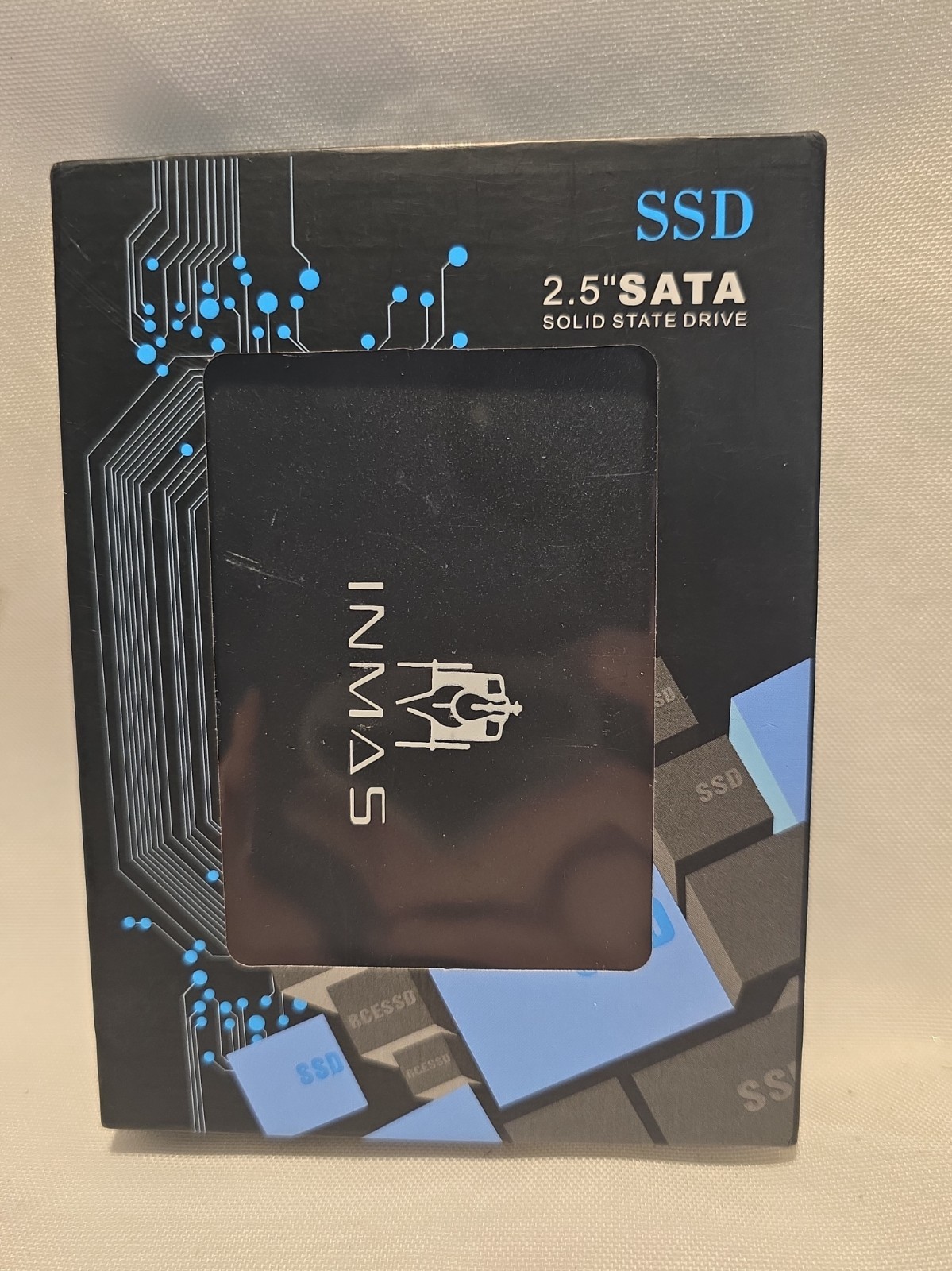

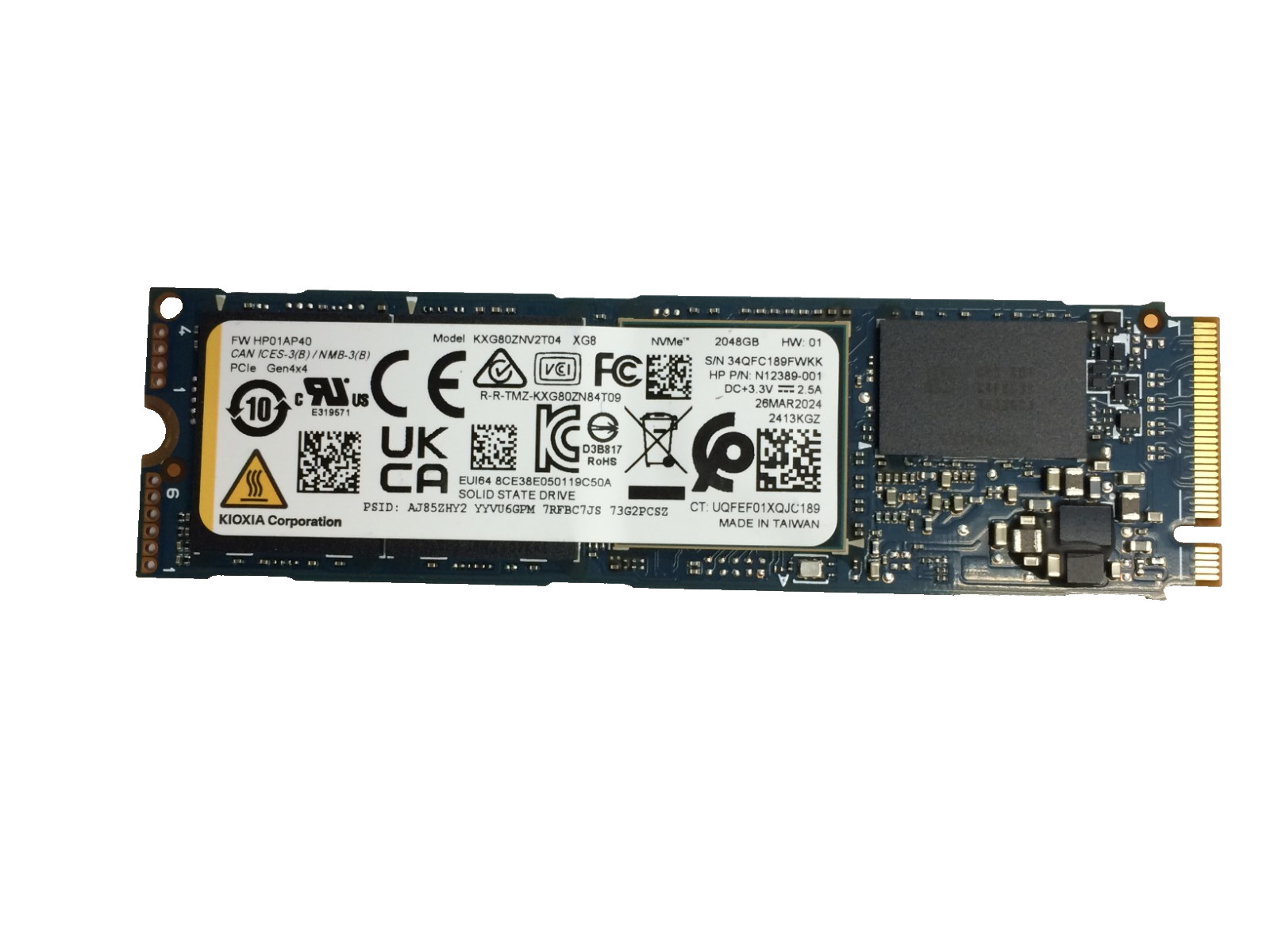
Photos from current listings. Actual item, color, and included accessories may vary.
Solid State Drive Laptop Buying Guide
A laptop SSD upgrade means replacing a slow 2.5-inch hard drive or older SATA drive with a flash-based drive in either the 2.5-inch SATA or M.2 form factor. The core trade-off is interface and form-factor compatibility versus speed: SATA caps at roughly 550 MB/s while NVMe PCIe 3.0/4.0 drives reach 3,500–7,000 MB/s, but only if your laptop slot and keying support it. The decision rule: match the physical form factor and protocol your laptop accepts first, then buy the highest endurance tier (TLC with DRAM or HMB) that fits your capacity need.
Median $144.99
Key takeaways
- 2.5-inch SATA III drives top out near 550 MB/s read/write and fit any laptop with a standard 7mm or 9.5mm SATA bay.
- M.2 2280 NVMe drives require an M-key slot; B+M key SATA M.2 drives fit both B and M slots but run at SATA speeds.
- PCIe 4.0 x4 NVMe delivers up to ~7,000 MB/s sequential but only in laptops whose CPU/chipset exposes Gen4 lanes; Gen3 slots cap near 3,500 MB/s.
At a glance
- Category
- PC Storage Upgrades
- Last updated
- Nov 28, 2026
Current offers
Highlights
- 2.5-inch SATA III drives top out near 550 MB/s read/write and fit any laptop with a standard 7mm or 9.5mm SATA bay.
- M.2 2280 NVMe drives require an M-key slot; B+M key SATA M.2 drives fit both B and M slots but run at SATA speeds.
- PCIe 4.0 x4 NVMe delivers up to ~7,000 MB/s sequential but only in laptops whose CPU/chipset exposes Gen4 lanes; Gen3 slots cap near 3,500 MB/s.
- Endurance scales with NAND type and DRAM: TLC with a DRAM cache sustains write speeds under load, while DRAM-less QLC drives slow sharply on large transfers.
Best use cases
- Best fit: older laptops with a 2.5-inch bay — pick a SATA III SSD in 7mm thickness for a direct swap that doubles perceived responsiveness.
- Best fit: modern ultrabooks with an M-key M.2 2280 slot — pick a PCIe 3.0 or 4.0 NVMe drive matched to the laptop's generation for full speed.
- Wrong fit: buying a Gen4 NVMe drive for a Gen3-only laptop wastes money on speed the slot cannot deliver; a Gen3 TLC drive is the smarter tier.
- Skip: DRAM-less QLC drives for sustained video editing or large game installs — choose TLC with DRAM or HMB instead.
Buying tips
- Measure the bay: 2.5-inch drives are 7mm or 9.5mm thick; ultrabooks typically need 7mm, and some require a caddy or bracket you must supply.
- Confirm M.2 keying: M-key slots accept NVMe PCIe drives; B+M key slots accept SATA M.2 or dual-key NVMe at reduced lane counts.
- Match PCIe generation: a Gen4 x4 drive in a Gen3 slot runs at Gen3 speeds, so buy Gen3 for older machines and Gen4 only for 11th-gen Intel or Ryzen 5000+ platforms.
- Check capacity headroom: leave 15–20% free space so the controller has spare blocks for wear leveling and sustained write performance.
Specs
| Form Factor | 2.5-inch SATA / M.2 2280 NVMe |
|---|---|
| Interface Speed | SATA ~550 MB/s vs NVMe 3,500–7,000 MB/s |
| M.2 Keying | M-key NVMe / B+M key SATA or PCIe |
| NAND & Cache | TLC with DRAM/HMB vs DRAM-less QLC |
Related searches
What to check before buying
- Open the laptop service panel and identify the storage bay: 2.5-inch SATA, M.2 2280, or M.2 2242 — length and keying must match exactly.
- Verify the M.2 slot's protocol in the laptop manual: PCIe/NVMe versus SATA-only M.2 changes which drive type you can buy.
- Confirm you have the mounting screws, caddy, or thermal pad the laptop requires; bare drives often ship without them.
- Plan the cloning or reinstall path: a USB-to-SATA or USB-to-NVMe enclosure lets you clone the old drive before swapping.
FAQ
Data sources: eBay / Amazon listings and product attribute feeds. Updated Nov 28, 2026.
Some links on this page are affiliate links. If you buy after clicking one, we may earn a commission at no extra cost to you. This does not change which products appear here or their order. Affiliate disclosure.