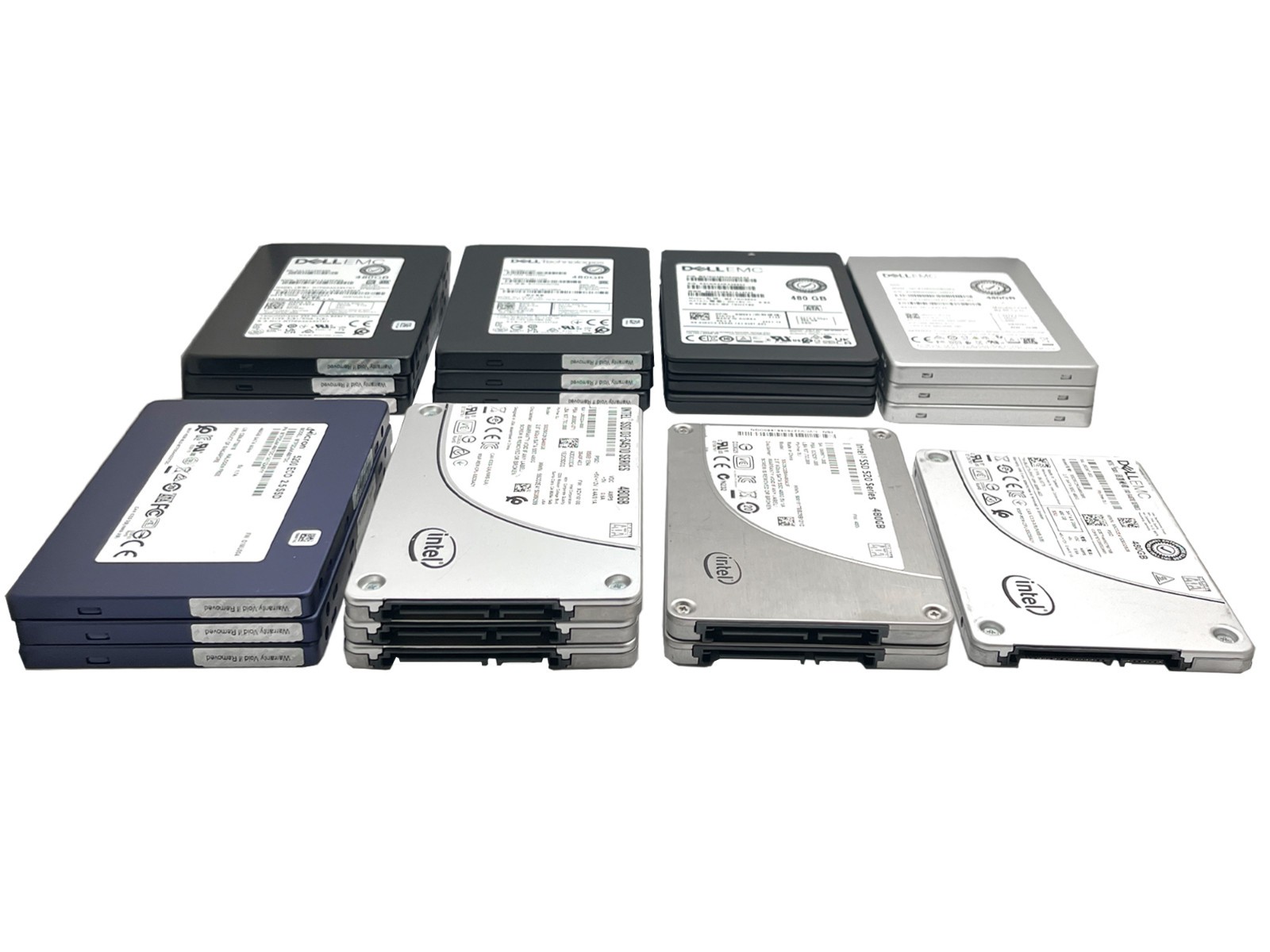

Photos from current listings. Actual item, color, and included accessories may vary.
Laptop SSD Drive Buying Guide
A laptop SSD upgrade replaces a slow hard drive or older SATA SSD with flash storage, and the primary trade-off is interface and form factor: SATA 2.5-inch drives cap at ~550 MB/s, while NVMe M.2 drives reach 3,500–7,400 MB/s but require an M.2 slot and correct keying. The decision rule is simple: match the physical slot and protocol your laptop already has—buying NVMe for a SATA-only bay or a 2.5-inch drive for an M.2-only chassis is a non-starter regardless of capacity.
Median $74.99
Key takeaways
- SATA III 2.5-inch SSDs top out at 560 MB/s read / 530 MB/s write due to the 6 Gb/s interface, making them a drop-in replacement for any 7mm or 9.5mm laptop hard drive bay.
- NVMe M.2 drives use PCIe lanes: PCIe 3.0 x4 hits ~3,500 MB/s, PCIe 4.0 x4 reaches ~7,000 MB/s, and PCIe 5.0 exceeds 10,000 MB/s—but only if the laptop's M.2 slot supports that generation.
- M.2 keying matters: B+M key fits both SATA and PCIe x2 slots, M key fits PCIe x4 slots only, and most laptops with a single M.2 slot accept M-key NVMe drives while SATA M.2 drives work only in B+M slots wired for SATA.
At a glance
- Category
- PC Storage Upgrades
- Last updated
- Nov 28, 2026
Current offers
Highlights
- SATA III 2.5-inch SSDs top out at 560 MB/s read / 530 MB/s write due to the 6 Gb/s interface, making them a drop-in replacement for any 7mm or 9.5mm laptop hard drive bay.
- NVMe M.2 drives use PCIe lanes: PCIe 3.0 x4 hits ~3,500 MB/s, PCIe 4.0 x4 reaches ~7,000 MB/s, and PCIe 5.0 exceeds 10,000 MB/s—but only if the laptop's M.2 slot supports that generation.
- M.2 keying matters: B+M key fits both SATA and PCIe x2 slots, M key fits PCIe x4 slots only, and most laptops with a single M.2 slot accept M-key NVMe drives while SATA M.2 drives work only in B+M slots wired for SATA.
- DRAM cache and SLC caching determine sustained write speed: DRAM-less QLC drives can drop below 100 MB/s after cache exhaustion, while TLC drives with DRAM hold rated speed for large file transfers.
Best use cases
- Best fit: aging laptop with a 2.5-inch hard drive bay—pick a 2.5-inch SATA III SSD (480GB–1TB, TLC, DRAM preferred) for a 5–10x boot and app-load improvement at the lowest cost and zero compatibility risk.
- Best fit: laptop with an M.2 2280 PCIe 3.0 slot—choose an NVMe TLC drive rated for that generation; skip PCIe 4.0/5.0 drives only if the price premium is steep, since they downclock safely.
- Wrong fit: ultra-thin laptop with soldered storage or no accessible drive bay—no 2.5-inch or M.2 drive will fit; confirm the service manual shows a removable SSD caddy or M.2 slot before buying.
- Wrong fit: buying a 2.5-inch SATA SSD for a laptop that only has an M.2 slot (or vice versa)—the connector physically will not mate, and no adapter inside a laptop chassis resolves the missing bay.
Buying tips
- Measure the drive bay first: 2.5-inch laptop SSDs come in 7mm and 9.5mm heights—most modern laptops need 7mm, and a 9.5mm drive will not seat in a 7mm caddy.
- For M.2, confirm length (2280 is standard; some laptops take 2242 or 2230) and key (M key for NVMe x4, B+M for SATA/PCIe x2) from the service manual or the existing drive's label.
- Choose TLC NAND over QLC for a primary OS drive; QLC drives are acceptable for secondary storage but suffer severe sustained-write drops once SLC cache is exhausted.
- Prefer drives with a DRAM cache or host memory buffer (HMB) support for OS use; DRAM-less designs without HMB feel sluggish under sustained writes and multitasking.
Specs
| Interface | SATA III 6 Gb/s vs NVMe PCIe |
|---|---|
| Form Factor | 2.5-inch 7mm/9.5mm vs M.2 2280 |
| NAND Type | TLC vs QLC (SLC cache) |
| Sequential Speed | SATA ~550 vs NVMe 3,500–7,400 MB/s |
Related searches
What to check before buying
- Open the laptop and identify the existing drive: 2.5-inch SATA (7mm/9.5mm) or M.2 (length and key)—photograph the label before ordering.
- Confirm the M.2 slot's PCIe generation (3.0 vs 4.0) and lane count (x2 vs x4) so the drive runs at its rated speed rather than being bottlenecked.
- Check that the laptop has a spare SATA or M.2 port if keeping the old drive; otherwise plan to clone or reinstall the OS on the new drive.
- Verify the laptop's service manual allows user-replaceable storage—some ultrabooks solder the SSD or use proprietary connectors that block standard upgrades.
FAQ
Data sources: eBay / Amazon listings and product attribute feeds. Updated Nov 28, 2026.
Some links on this page are affiliate links. If you buy after clicking one, we may earn a commission at no extra cost to you. This does not change which products appear here or their order. Affiliate disclosure.