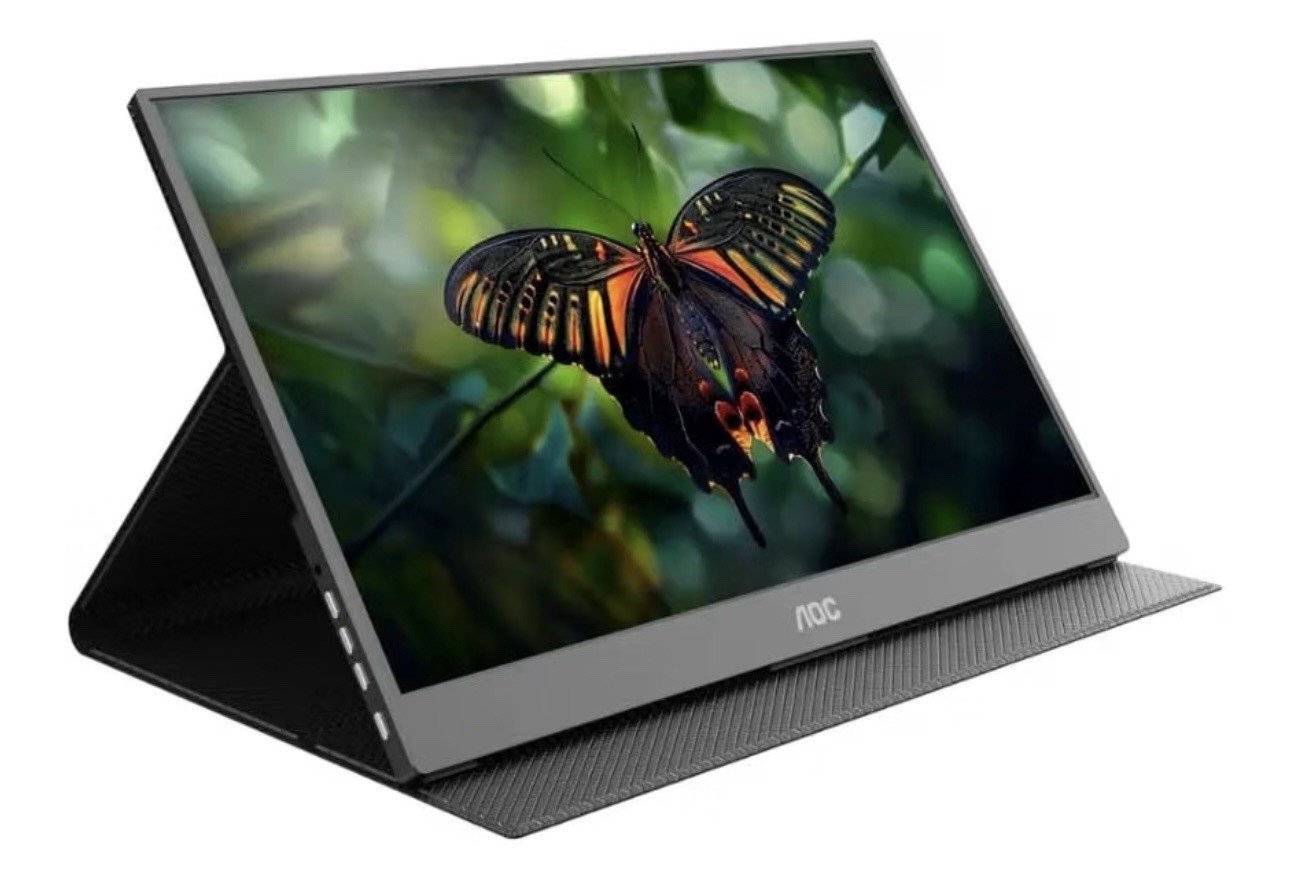

Photos from current listings. Actual item, color, and included accessories may vary.
Monitor With USB Port Buying Guide
A monitor with USB ports is defined by how its USB-C or USB-A hub delivers power and data alongside video, with the key trade-off being USB-C Power Delivery wattage and hub speed versus legacy USB-A only. Durable, future-proof choices provide at least 65W USB-C PD and USB 3.0 data, while compromises offer low-wattage or USB 2.0 ports that cannot charge a laptop or run fast storage.
Key takeaways
- USB-C with Power Delivery (PD) must supply 65W or more to charge most 13-14 inch laptops at full speed; 45W or lower only maintains charge under light load.
- USB 3.2 Gen 1 (5 Gbps) hub ports are the minimum for external SSDs and dual DisplayPort alt-mode; USB 2.0 ports cap at 480 Mbps and cannot support video output.
- A monitor's USB-C upstream port requires a compatible USB-C cable that carries both video and power; legacy USB-A ports on monitors are data-only downlinks from a PC connection.
At a glance
- Category
- Computer Monitors
- Last updated
- Nov 28, 2026
Current offers
Highlights
- USB-C with Power Delivery (PD) must supply 65W or more to charge most 13-14 inch laptops at full speed; 45W or lower only maintains charge under light load.
- USB 3.2 Gen 1 (5 Gbps) hub ports are the minimum for external SSDs and dual DisplayPort alt-mode; USB 2.0 ports cap at 480 Mbps and cannot support video output.
- A monitor's USB-C upstream port requires a compatible USB-C cable that carries both video and power; legacy USB-A ports on monitors are data-only downlinks from a PC connection.
- Portable USB-C monitors typically deliver 5-15W passthrough and lack a hub, while desktop USB-C hub monitors include full PD and multiple USB-A downstream ports.
Best use cases
- Choose a desktop USB-C hub monitor with 65W+ PD and USB 3.0 downstream ports if you dock a laptop daily and need one-cable charging, video, and peripheral connection—skip portable models with 15W passthrough.
- Select a portable USB-C monitor with dual USB-C ports (one for power, one for data) for travel or secondary screen use with a phone or tablet—avoid USB-A-only portable displays that cannot receive video over USB-C.
- Pick a monitor with USB-A downstream ports only if you already connect video via HDMI or DisplayPort and only need keyboard/mouse or flash drive connectivity—do not expect laptop charging from USB-A ports.
- For multi-monitor setups, choose monitors with USB-C daisy-chaining (DisplayPort alt-mode out) and at least 65W PD to reduce cable clutter—skip models that only offer USB-C input without output.
Buying tips
- Match USB-C PD wattage to your laptop's charger: 65W covers most ultrabooks, 90W+ is needed for 15-inch professional laptops, and 45W is insufficient for sustained workloads.
- Verify USB-C port supports DisplayPort Alt Mode and USB 3.2 Gen 1 simultaneously; some budget monitors drop to USB 2.0 speeds when video is active.
- Check downstream USB-A port count and version: four USB 3.0 ports or more suit peripheral-heavy desks; two USB 2.0 ports limit you to keyboard and mouse.
- For portable monitors, confirm two USB-C ports (one for power input, one for video/data) so you can charge while using the display; single-port models require a separate power bank.
Specs
| USB-C Power Delivery | 45W / 65W / 90W tiers |
|---|---|
| USB Data Standard | USB 2.0 vs USB 3.2 Gen 1 (5 Gbps) |
| Downstream USB Ports | 2-4 USB-A + 1 USB-C |
| Video Input | USB-C DP Alt Mode / HDMI / DP |
Related searches
What to check before buying
- Measure your desk depth and monitor arm VESA pattern (75x75mm or 100x100mm) to ensure the USB hub monitor fits without blocking ports.
- Confirm your laptop's USB-C port supports Power Delivery and DisplayPort Alt Mode; older USB-C ports may be data-only and will not charge or send video.
- Check your region's plug standard and included power cable type (USB-C or barrel) for the monitor's power supply; a 65W PD monitor may require a specific adapter.
- Ensure you have a USB-C cable rated for 5 Gbps data and 100W power (not a charge-only cable) to connect laptop to monitor's upstream port.
FAQ
Data sources: eBay / Amazon listings and product attribute feeds. Updated Nov 28, 2026.
Some links on this page are affiliate links. If you buy after clicking one, we may earn a commission at no extra cost to you. This does not change which products appear here or their order. Affiliate disclosure.