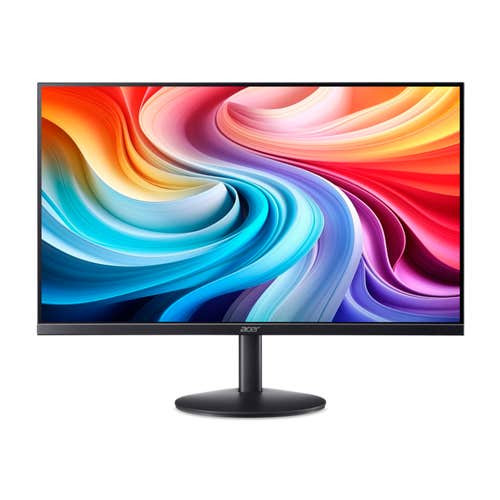

Photos from current listings. Actual item, color, and included accessories may vary.
Computer Monitor Buying Guide
A computer monitor is the primary display surface for work, gaming, and media, and its quality is defined by the panel type, resolution, refresh rate, and ergonomic stand rather than the brand logo. The core trade-off is between budget TN/VA panels with limited viewing angles and mid-tier IPS/OLED panels that deliver accurate color and wide angles at higher cost. The decision rule: buy for the panel technology and port standard that matches your task—IPS for office accuracy, high-refresh VA/IPS for gaming, and USB-C or dual-HDMI for laptop docking—and skip any monitor that lacks a height-adjustable stand or modern video input.
Key takeaways
- Panel technology determines viewing angle and color accuracy: IPS offers 178-degree viewing and consistent color, VA delivers deeper blacks but slower dark transitions, TN is fast but shifts color off-axis.
- Refresh rate tiers separate smoothness: 60Hz is baseline for office work, 120–144Hz is the entry gaming threshold, and 240Hz+ suits competitive shooters; always match to GPU output at native resolution.
- Resolution and size pair by pixel density: 1080p suits 21–24 inches, 1440p suits 27 inches, and 4K suits 27 inches or larger; a 1080p panel at 27 inches shows visible pixelation.
At a glance
- Category
- Computer Monitors
- Last updated
- Nov 28, 2026
Current offers
Highlights
- Panel technology determines viewing angle and color accuracy: IPS offers 178-degree viewing and consistent color, VA delivers deeper blacks but slower dark transitions, TN is fast but shifts color off-axis.
- Refresh rate tiers separate smoothness: 60Hz is baseline for office work, 120–144Hz is the entry gaming threshold, and 240Hz+ suits competitive shooters; always match to GPU output at native resolution.
- Resolution and size pair by pixel density: 1080p suits 21–24 inches, 1440p suits 27 inches, and 4K suits 27 inches or larger; a 1080p panel at 27 inches shows visible pixelation.
- Modern connectivity standard is HDMI 2.0 plus DisplayPort 1.4 for 1440p/144Hz, while USB-C with power delivery (65W+) enables single-cable laptop docking and charging.
Best use cases
- Best for home office and document work: pick a 24–27 inch IPS panel at 1080p or 1440p with a height-adjustable stand and USB-C or dual-HDMI inputs; skip TN panels and fixed-stand budget models.
- Best for competitive gaming: choose a 24–27 inch 1080p or 1440p panel at 144Hz or higher with 1ms response and DisplayPort; skip 60Hz office monitors and VA panels with slow dark transitions.
- Best for laptop-only users needing a second screen: select a 24-inch 1080p IPS with USB-C power delivery and a built-in hub; skip monitors without USB-C if you want single-cable docking and charging.
- Wrong fit: buying a 32-inch 1080p monitor for desk work produces visible pixelation at arm's length—step up to 1440p or 4K at that size, or stay at 27 inches for 1440p.
Buying tips
- Match resolution to size: 1080p at 24 inches yields about 92 PPI, 1440p at 27 inches yields about 109 PPI, and 4K at 27 inches yields about 163 PPI—stay above 90 PPI for crisp text.
- For gaming, prioritize refresh rate and response time over resolution: a 1440p 144Hz IPS panel outperforms a 4K 60Hz panel for motion clarity at the same budget tier.
- Check the stand: height adjustment, tilt, and VESA 100x100 mounting are the difference between a comfortable office monitor and a neck-straining fixed-stand compromise.
- Confirm port generation: HDMI 2.0 supports 1440p at 144Hz, DisplayPort 1.4 supports 4K at 120Hz, and USB-C with 65W+ power delivery replaces a separate laptop charger.
Specs
| Panel Type | IPS / VA / TN / OLED |
|---|---|
| Resolution Tier | 1080p / 1440p / 4K |
| Refresh Rate | 60Hz / 144Hz / 240Hz+ |
| Video Inputs | HDMI 2.0 / DP 1.4 / USB-C PD |
Related searches
What to check before buying
- Measure desk depth and viewing distance: 24-inch monitors fit 20–24 inch viewing distance, 27-inch fits 24–30 inches, and 32-inch needs 30 inches or more.
- Verify your laptop or GPU output: HDMI 2.0 caps at 1440p/144Hz, DisplayPort 1.4 handles 4K/120Hz, and USB-C alt mode requires the laptop port to support DisplayPort.
- Check VESA mounting pattern (75x75 or 100x100) and monitor weight against your arm or wall mount rating before buying.
- Confirm regional plug and voltage: monitors ship with either 100–240V internal power or a regional external adapter, and a US plug will not fit EU/UK outlets without an adapter.
FAQ
Data sources: eBay / Amazon listings and product attribute feeds. Updated Nov 28, 2026.
Some links on this page are affiliate links. If you buy after clicking one, we may earn a commission at no extra cost to you. This does not change which products appear here or their order. Affiliate disclosure.