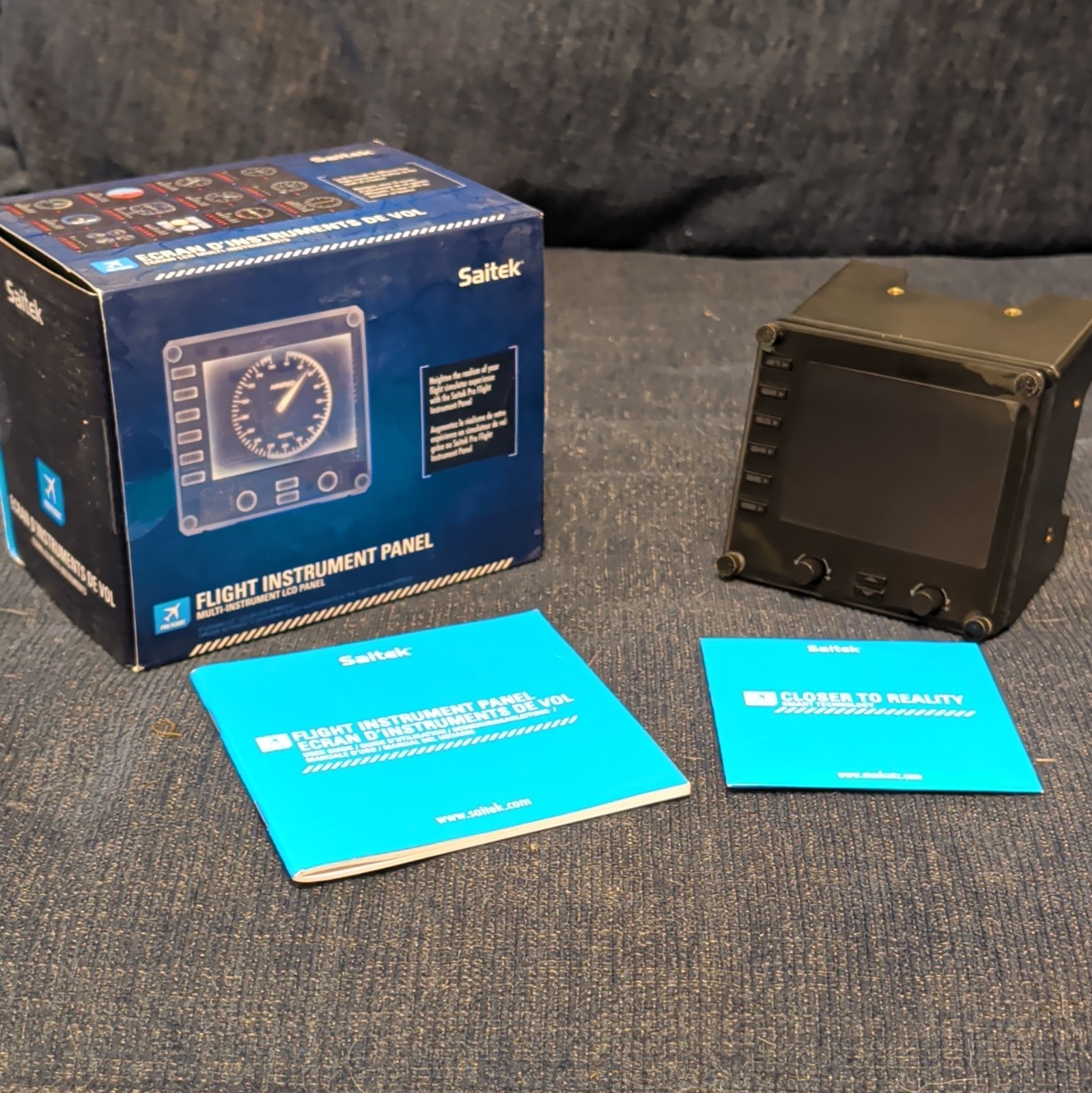

Photos from current listings. Actual item, color, and included accessories may vary.
Logitech Flight Instrument Panel Buying Guide
A Logitech Flight Instrument Panel is a USB-connected hardware gauge cluster that mirrors in-sim avionics on physical LCDs, letting you read airspeed, altitude, heading, and engine data without covering the screen. The core trade-off is firmware integration depth: genuine Saitek/Logitech panels expose full multi-gauge switching and are natively recognized by Microsoft Flight Simulator, X-Plane, and Prepar3D, while generic third-party LCD panels often require custom driver bridges or Spad.neXt profiles. The decision rule is simple: buy a genuine Logitech/Saitek unit for plug-and-play multi-sim support, and only accept an alternative if it explicitly confirms compatibility with your exact simulator and offers per-gauge customization via a supported driver.
Key takeaways
- Each panel is a single USB 2.0 device with a 3.5-inch (approx. 320x240) LCD and dedicated rotary/button controls; a full radio stack plus multi-panel setup requires a powered USB hub to avoid enumeration dropouts.
- The genuine Logitech G Saitek Pro Flight Instrument Panel presents multiple gauge faces (airspeed, altimeter, VOR, engine, and attitude-style displays) selectable in software, so one physical unit can serve several cockpit instruments across different aircraft.
- Native support is strongest in Microsoft Flight Simulator (2020), X-Plane 11/12, and Prepar3D; older FSX and some add-on aircraft require the Logitech/Saitek driver and may need a third-party bridge such as Spad.neXt for full gauge mapping.
At a glance
- Category
- Flight Sim Panels & Instruments
- Last updated
- Nov 23, 2026
Current offers
Highlights
- Each panel is a single USB 2.0 device with a 3.5-inch (approx. 320x240) LCD and dedicated rotary/button controls; a full radio stack plus multi-panel setup requires a powered USB hub to avoid enumeration dropouts.
- The genuine Logitech G Saitek Pro Flight Instrument Panel presents multiple gauge faces (airspeed, altimeter, VOR, engine, and attitude-style displays) selectable in software, so one physical unit can serve several cockpit instruments across different aircraft.
- Native support is strongest in Microsoft Flight Simulator (2020), X-Plane 11/12, and Prepar3D; older FSX and some add-on aircraft require the Logitech/Saitek driver and may need a third-party bridge such as Spad.neXt for full gauge mapping.
- Build is ABS plastic with a fixed desktop stand and no internal battery; power and data come entirely from the USB bus, so panel count is limited by host controller power, not by an external adapter.
Best use cases
- Best fit: simmers flying airliners or GA aircraft in MSFS 2020 or X-Plane 12 who want to glance at airspeed, altitude, and heading without shifting view — buy the genuine Logitech G Saitek panel and mount it beside your yoke/quadrant on a stable desk edge.
- Best fit: builders creating a multi-panel radio stack — combine one or more Logitech Instrument Panels with the Logitech/Saitek Radio and Switch panels on a powered USB hub; skip single-panel kits if you plan to add radios later.
- Wrong fit: console-only or VR-exclusive flyers — these panels are Windows PC USB HID devices with no console support and no benefit inside a headset; skip them and use in-sim pop-out gauges instead.
- Wrong fit: users expecting standalone operation without a PC — the LCD shows nothing without a running simulator and driver; it is a peripheral, not a self-contained instrument, so do not buy it as a desk clock or standalone gauge.
Buying tips
- Buy the genuine Logitech G Saitek Pro Flight Instrument Panel rather than an unbranded LCD gauge: only the genuine unit ships with the official driver and multi-gauge switching firmware, which is the whole point of the product.
- Budget USB bandwidth and power: each panel is a USB 2.0 device, so a powered hub with at least 5V/2A shared across the stack prevents random disconnects when running three or more panels plus a yoke.
- Match the panel to your simulator before buying: MSFS 2020 and X-Plane 12 have native or near-native profiles, while FSX and specialized add-ons need the Saitek/Logitech driver plus Spad.neXt for full gauge mapping.
- Prefer listings that include the original stand and USB cable, and confirm the unit is the Logitech-branded version (post-2016) rather than an older Saitek-era unit if you want current driver downloads from Logitech support.
Specs
| Connection | USB 2.0 wired (bus-powered) |
|---|---|
| Display Type | 3.5 in color LCD, multi-gauge |
| Sim Compatibility | MSFS 2020, X-Plane 11/12, P3D |
| Panel Format | Single gauge with rotary/buttons |
Related searches
What to check before buying
- Desk space: each panel is roughly 4-5 inches wide and needs a flat, stable edge; measure the area beside your yoke or throttle before planning a multi-panel stack.
- PC platform: confirm a Windows 10/11 PC with available USB 2.0/3.0 ports, since the panel has no console or macOS support and requires the simulator to be running.
- USB power budget: plan a powered hub if you will run more than two USB sim peripherals, because unpowered hubs cause gauge flicker and device resets.
- Simulator compatibility: verify your exact sim version (MSFS 2020, X-Plane 11/12, P3D, FSX) and whether it needs Spad.neXt or the Logitech driver for the gauge faces you intend to use.
FAQ
Data sources: eBay / Amazon listings and product attribute feeds. Updated Nov 23, 2026.
Some links on this page are affiliate links. If you buy after clicking one, we may earn a commission at no extra cost to you. This does not change which products appear here or their order. Affiliate disclosure.