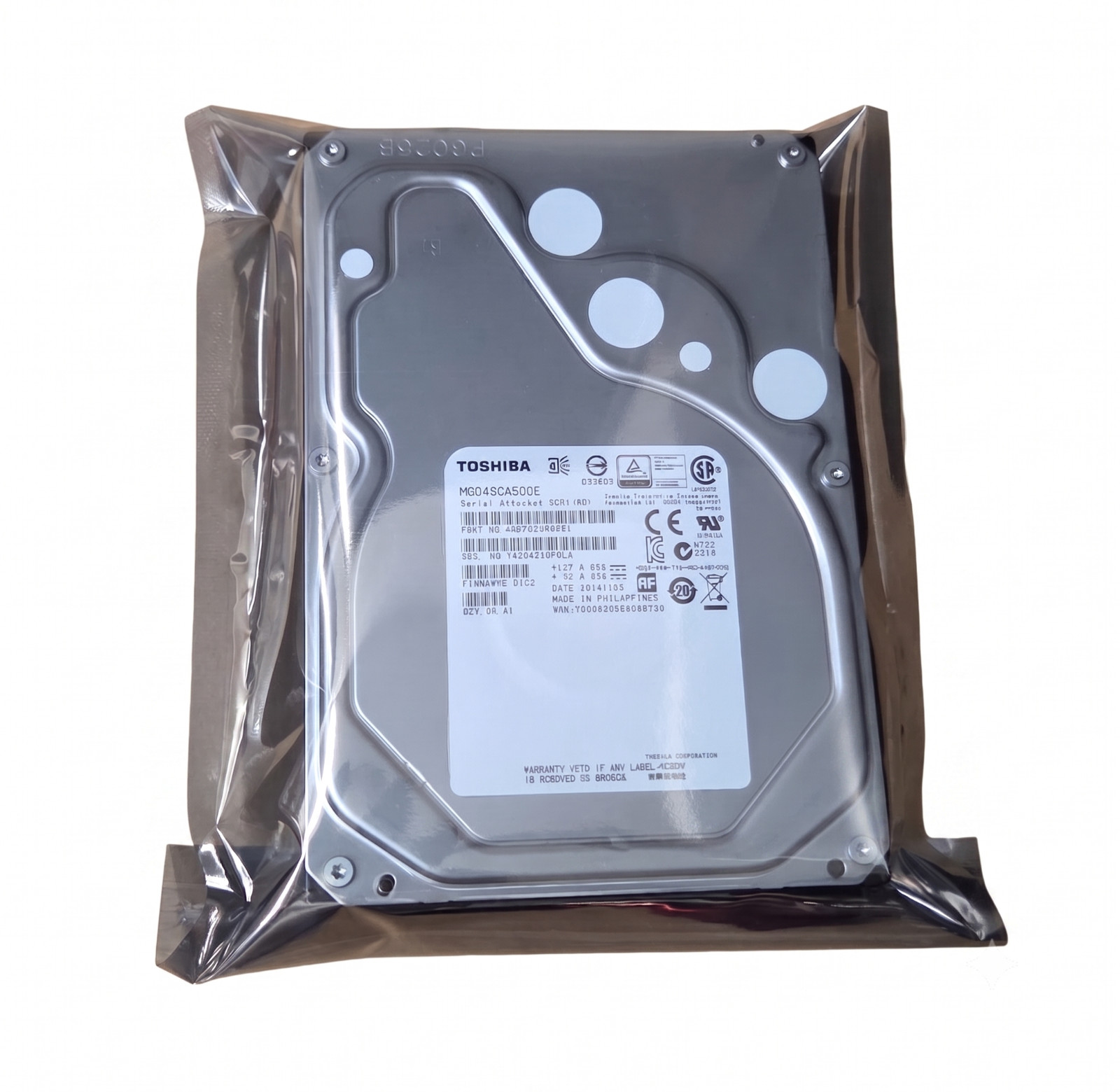

Photos from current listings. Actual item, color, and included accessories may vary.
Portable Hard Drive Buying Guide
Portable hard drives are external USB storage devices using either spinning platters (HDD) or flash memory (SSD), and the core trade-off is capacity-per-dollar versus shock resistance and speed. Buy a 2.5-inch HDD for bulk backup at the lowest cost per terabyte, or a USB-C SSD for travel and active editing where drops and transfer times matter. The decision rule: if the drive leaves your desk, prioritize a USB-C SSD with an aluminum or rubberized enclosure; if it stays home for backups, a bus-powered HDD with 2TB+ is the durable, economical choice.
Median $227.25
Key takeaways
- 2.5-inch HDDs top out at 5TB and rely on spinning platters and a read/write head, making them vulnerable to drops while powered on; SSDs have no moving parts and survive far higher shock loads.
- USB 3.2 Gen 1 (5Gbps) is the baseline for both HDDs and budget SSDs; USB 3.2 Gen 2 (10Gbps) and Gen 2x2 (20Gbps) SSDs deliver 500–2000 MB/s but require a matching USB-C port and cable to reach rated speeds.
- Bus-powered 2.5-inch drives draw all power from the USB port and need no external adapter; 3.5-inch desktop drives require a 12V power brick and are not portable.
At a glance
- Category
- NAS Storage & Drives
- Last updated
- Nov 28, 2026
Current offers
Highlights
- 2.5-inch HDDs top out at 5TB and rely on spinning platters and a read/write head, making them vulnerable to drops while powered on; SSDs have no moving parts and survive far higher shock loads.
- USB 3.2 Gen 1 (5Gbps) is the baseline for both HDDs and budget SSDs; USB 3.2 Gen 2 (10Gbps) and Gen 2x2 (20Gbps) SSDs deliver 500–2000 MB/s but require a matching USB-C port and cable to reach rated speeds.
- Bus-powered 2.5-inch drives draw all power from the USB port and need no external adapter; 3.5-inch desktop drives require a 12V power brick and are not portable.
- SMR (shingled magnetic recording) HDDs have slower sustained write speeds after cache exhaustion than CMR drives — critical if you write large files frequently; check the model's recording technology for backup workloads.
Best use cases
- Laptop backup and photo/video archiving: pick a 2TB–5TB USB 3.2 Gen 1 HDD with a rubberized or aluminum shell and 3-year warranty; skip slim plastic 1TB models that cost more per terabyte.
- Frequent travel and on-location editing: choose a USB-C SSD (USB 3.2 Gen 2, 10Gbps) with an aluminum or shock-resistant enclosure rated for 2m drop; skip bus-powered HDDs that spin during transport.
- Console game storage (PS5/Xbox): use a USB 3.2 Gen 2 SSD for faster load times and direct game play; skip HDDs for current-gen titles that require SSD-level throughput.
- Desktop-only cold backup: a 3.5-inch desktop HDD with external power offers the lowest cost per terabyte for stationary archives; skip portable HDDs if the drive never moves and you need 8TB+.
Buying tips
- Match the interface to your port: USB 3.2 Gen 1 (5Gbps) is sufficient for any HDD; for SSDs, only pay for Gen 2 (10Gbps) or Gen 2x2 (20Gbps) if your laptop has a USB-C port that supports those speeds.
- For HDDs, prefer CMR over SMR recording for frequent large-file writes; SMR drives slow dramatically after the cache fills and are better suited to write-once archive use.
- Capacity math: 2.5-inch portable HDDs currently max out at 5TB; SSDs are widely available from 500GB to 4TB in portable enclosures — choose the smallest capacity that covers your working set plus 30% headroom.
- Enclosure material matters: aluminum or rubberized shells dissipate heat and absorb shock better than thin plastic; avoid drives with exposed USB ports that can snap off in a bag.
Specs
| Drive Type | 2.5" HDD vs Portable SSD |
|---|---|
| Interface | USB 3.2 Gen 1 / Gen 2 / Gen 2x2 |
| Capacity Range | HDD up to 5TB; SSD 500GB–4TB |
| Power Source | Bus-powered USB vs 12V adapter |
Related searches
What to check before buying
- Confirm your laptop or desktop has a USB-C or USB-A port that supplies enough power for bus-powered drives (standard USB 3.0 ports deliver 900mA, sufficient for 2.5-inch HDDs and most SSDs).
- Measure your bag or pocket: 2.5-inch drives are typically 4.5–5.5 inches long and 0.5–0.8 inches thick; SSDs are often smaller and lighter, which matters for daily carry.
- Check the drive's operating shock rating and warranty length — 2-year warranties are common on budget HDDs, while 3–5 years indicates a more durable tier.
- For console use, verify the drive meets the console's minimum USB speed requirement (USB 3.2 Gen 1 or faster) and is formatted exFAT or the console's required file system.
FAQ
Data sources: eBay / Amazon listings and product attribute feeds. Updated Nov 28, 2026.
Some links on this page are affiliate links. If you buy after clicking one, we may earn a commission at no extra cost to you. This does not change which products appear here or their order. Affiliate disclosure.